

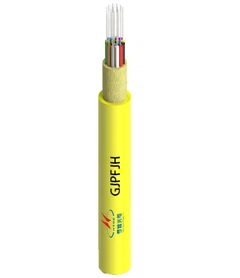



Connecting an optical cable (also known as a TOSLINK or SPDIF cable) to your Samsung TV is a great way to enjoy high-quality digital audio through a soundbar, home theater system, or AV receiver. This guide will walk you through the simple steps to set it up.
What You'll Need
A Samsung TV with an optical audio output (most modern models have one)
An optical audio cable (TOSLINK)
A compatible audio device (soundbar, receiver, etc.)
Step-by-Step Connection Guide
1. Locate the Optical Port on Your Samsung TV
Check the back or side of your TV for a small, square-shaped port labeled "Optical Audio Out" or "Digital Audio Out (Optical)".
2. Connect the Optical Cable
Insert one end of the optical cable into the TV's optical port.
Plug the other end into your soundbar or receiver's optical input.
3. Configure Audio Settings on Your Samsung TV
Press the Home button on your remote and go to Settings (the gear icon).
Navigate to Sound > Sound Output.
Select Optical (or Digital Audio Out).
(Optional) Adjust settings like Audio Format-choose PCM for stereo or Dolby Digital for surround sound (if supported).
4. Test the Connection
Play audio or video on your TV to ensure sound is coming from your external speaker system.
Troubleshooting Tips
No Sound? Ensure the cable is firmly connected and the correct input is selected on your sound system.
Check TV Settings: Make sure the TV's audio output is set to Optical.
Try Another Cable: Optical cables can sometimes fail; test with a different one if needed.
Conclusion
Connecting an optical cable to your Samsung TV is a quick way to enhance your audio experience. Follow these steps, and you'll enjoy crisp, high-quality sound in no time!
Have questions? Drop them in the comments below!