

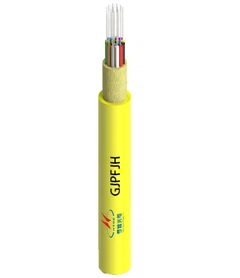


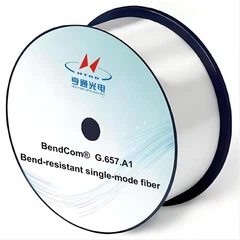
Fiber optic technology has revolutionized internet connectivity, offering faster speeds and more reliable connections than traditional copper cables. Connecting a fiber optic cable to a router might seem daunting at first, but with the right tools and a bit of patience, it's a straightforward process. Here's a step-by-step guide to help you through it.
1. Understand the Basics
Before diving in, familiarize yourself with the components involved:
Fiber Optic Cable: Transmits data as light pulses through thin strands of glass or plastic.
Optical Network Terminal (ONT): Converts the optical signal from the fiber cable into an electrical signal that your router can use.
Router: Distributes the internet connection to your devices via Wi-Fi or Ethernet cables.
2. Gather the Necessary Tools
Ensure you have all the required equipment:
Fiber Optic Cable: Typically provided by your Internet Service Provider (ISP).
ONT: Often installed by your ISP, but sometimes you may need to set it up yourself.
Router: Your choice of router that supports the connection type (usually Ethernet WAN).
Ethernet Cables: For connecting the ONT to the router.
Power Cables: For the ONT and router.
Scissors or Fiber Optic Stripper: For preparing the fiber cable (if needed).
Cleaning Supplies: Alcohol wipes and lint-free cloths for cleaning connectors.
3. Prepare the Fiber Optic Cable
Caution: Fiber optic cables are delicate. Handle them with care to avoid breaking the glass fibers inside.
Strip the Cable (if necessary): If your fiber cable isn't pre-terminated, you'll need to strip it to expose the fibers. Use a fiber optic stripper designed for the specific cable type (single-mode or multi-mode).
Clean the Connectors: Use alcohol wipes and lint-free cloths to clean the connectors on both the fiber cable and the ONT. Dust or debris can interfere with the signal.
4. Connect the Fiber Cable to the ONT
Locate the ONT: This is usually a small box mounted on a wall near where the fiber line enters your home.
Insert the Fiber Cable: Align the fiber cable connector with the port on the ONT and gently push it in until it clicks. Avoid bending the cable too sharply, as this can damage the fibers.
5. Power Up the ONT
Connect the Power Cable: Plug the power cable into the ONT and then into a power outlet.
Wait for the ONT to Boot: The ONT will take a few minutes to initialize and establish a connection with your ISP. Look for indicator lights on the ONT to confirm it's powered on and connected.
6. Connect the ONT to the Router
Use an Ethernet Cable: Connect one end of an Ethernet cable to the Ethernet port on the ONT (often labeled "LAN" or "Ethernet Out").
Connect to the Router: Plug the other end of the Ethernet cable into the WAN (Wide Area Network) port on your router. This port is usually labeled and may be a different color than the other ports.
7. Power Up the Router
Connect the Power Cable: Plug the power cable into the router and then into a power outlet.
Wait for the Router to Boot: The router will take a few minutes to initialize and establish a connection with the ONT. Look for indicator lights on the router to confirm it's powered on and connected.
8. Configure the Router (if necessary)
Access the Router's Admin Interface: Open a web browser and enter the router's IP address (usually something like 192.168.1.1 or 192.168.0.1) into the address bar. Log in with the default username and password (often "admin" for both, but check the router's manual for specifics).
Check the Connection Status: In the router's settings, navigate to the WAN or Internet settings page. Verify that the router has successfully connected to the ONT and received an IP address from your ISP.
Configure Wi-Fi and Other Settings: Set up your Wi-Fi network name (SSID) and password, and configure any other settings you need (e.g., port forwarding, parental controls).
9. Test the Connection
Connect a Device: Connect a computer, smartphone, or other device to your Wi-Fi network or use an Ethernet cable to connect directly to the router.
Check Internet Access: Open a web browser and try visiting a website to confirm that your internet connection is working.
10. Troubleshooting Tips
No Internet Access:Double-check all connections to ensure they're secure.Restart the ONT and router by unplugging their power cables, waiting a few seconds, and then plugging them back in.
Contact your ISP if the issue persists, as there may be a problem with the fiber line or your account.
Slow Speeds:Ensure your devices are close to the router for optimal Wi-Fi performance.Check for interference from other electronic devices or thick walls that may be blocking the signal.Consider upgrading your router or using a mesh Wi-Fi system for better coverage.
Conclusion
Connecting a fiber optic cable to a router is a straightforward process that can greatly enhance your internet experience. By following these steps and taking care to handle the fiber cable properly, you'll be enjoying faster, more reliable internet in no time. If you encounter any issues, don't hesitate to reach out to your ISP for assistance.